
 NiceTry12138
3e17c911c0
feat: 添加 SchemaAction 和 AddNode 逻辑
NiceTry12138
3e17c911c0
feat: 添加 SchemaAction 和 AddNode 逻辑
|
5 ヶ月 前 | |
|---|---|---|
| .. | ||
| Image | 5 ヶ月 前 | |
| README.md | 5 ヶ月 前 | |
README.md
FlowGraph
全新的资产类型
蓝图编辑器的作用主要就是为了帮助使用者方便的进行数据配置
我觉得蓝图本身就是一种配置
虚幻提供了为自定义类型扩展编辑界面的方法
本质上来说,这一套流程分为三个部分
- UObject,也就是资源对象本体所代表的数据
- 编辑器类,UObject 对应的编辑器类,可能存储一些额外的数据
- UI类,编辑器类对应的显示类,用于方便用户使用
定于原始数据类型
对 FlowGraph 插件来说,UFlowAsset 就是那个用于存储资源对象原始数据的类,所有的操作都是基于这个类来运行的
UCLASS(BlueprintType, hideCategories = Object)
class FLOW_API UFlowAsset : public UObject
关联 Asset
如何基于这个 UObject 创建资产(Asset) 呢?】
根据 前置内容 来看,继承 IAssetTypeActions 来定义 Asset 的效果
在 FlowGraph 的插件中,使用 IAssetTypeActions 是下面这样的
class FLOWEDITOR_API FAssetTypeActions_FlowAsset : public FAssetTypeActions_Base
{
public:
	virtual FText GetName() const override;
	virtual uint32 GetCategories() override;
	virtual FColor GetTypeColor() const override { return FColor(255, 196, 128); }

	virtual UClass* GetSupportedClass() const override;
	virtual void OpenAssetEditor(const TArray<UObject*>& InObjects, TSharedPtr<class IToolkitHost> EditWithinLevelEditor = TSharedPtr<IToolkitHost>()) override;

	virtual void PerformAssetDiff(UObject* OldAsset, UObject* NewAsset, const FRevisionInfo& OldRevision, const FRevisionInfo& NewRevision) const override;
};
| 函数名称 | 作用 | 示例 |
|---|---|---|
| GetName | 显示名称 | "Flow Asset" |
| GetCategories | 所属类型 | static_castEAssetTypeCategories::Type(0) |
| GetTypeColor | 资产下面的颜色条 | FColor(255, 196, 128) |
| GetSupportedClass | 该资产关联的 Class | UFlowAsset::StaticClass() |
| OpenAssetEditor | 打开资产编辑面板 |
FAssetTypeActions_Base是继承自IAssetTypeActions的,预先定义好很多默认内容
与此同时,UE5 也提供了新的方法,来定义 Asset,其名为 UAssetDefinition
class FLOWEDITOR_API UAssetDefinition_FlowAsset : public UAssetDefinition
{
	GENERATED_BODY()

public:
	virtual FText GetAssetDisplayName() const override;
	virtual FLinearColor GetAssetColor() const override;
	virtual TSoftClassPtr<UObject> GetAssetClass() const override;
	virtual TConstArrayView<FAssetCategoryPath> GetAssetCategories() const override;
	virtual FAssetSupportResponse CanLocalize(const FAssetData& InAsset) const override;

	virtual EAssetCommandResult OpenAssets(const FAssetOpenArgs& OpenArgs) const override;
	virtual EAssetCommandResult PerformAssetDiff(const FAssetDiffArgs& DiffArgs) const override;
};
| 函数名称 | 作用 | 示例 |
|---|---|---|
| GetAssetDisplayName | 显示名称 | "Flow Asset" |
| GetAssetColor | 资产下面的颜色条 | FColor(255, 196, 128) |
| GetAssetClass | 资产关联的 Class | UFlowAsset::StaticClass() |
| GetAssetCategories | 所属类型 | { FFLowAssetCategoryPaths::Flow } |
| OpenAssets | 打开资产对应的编辑面板 |
在 FlowGraph 中,无论是 OpenAssets 还是 OpenAssetEditor,统一调用的接口都是
const FFlowEditorModule* FlowModule = &FModuleManager::LoadModuleChecked<FFlowEditorModule>("FlowEditor");
FlowModule->CreateFlowAssetEditor(OpenArgs.GetToolkitMode(), OpenArgs.ToolkitHost, FlowAsset);
创建 Asset
这里倒是与 前置知识 相同,通过继承 UFactory 来 Asset 对象
UCLASS(HideCategories = Object)
class FLOWEDITOR_API UFlowAssetFactory : public UFactory
{
	GENERATED_UCLASS_BODY()

	UPROPERTY(EditAnywhere, Category = Asset)
	TSubclassOf<class UFlowAsset> AssetClass;

	virtual bool ConfigureProperties() override;
	virtual UObject* FactoryCreateNew(UClass* Class, UObject* InParent, FName Name, EObjectFlags Flags, UObject* Context, FFeedbackContext* Warn) override;

protected:
	// Parameterized guts of ConfigureProperties()
	bool ConfigurePropertiesInternal(const FText& TitleText);
};
当你在资源管理器中右键,会先触发 ConfigureProperties,根据返回的 bool 值判断能否创建
此时会创建一个虚拟的 Asset,当你确定文件名称之后,才会执行 FactoryCreateNew 用于表示一个 Asset 真正创建了
其实也很正常,毕竟在 确定名称 之后才能真正创建。当你右键创建资产,但是不按回车或者鼠标来设定名称,而是一直按 ESC,资产不会被创建
定义图表编辑器
与蓝图编辑器类似,定义类似的编辑器需要
- UEdGraph 代表图表对象,存储所有的节点
- UEdGraphNode 代表图标对象中的一个节点
- UEdGraphSchema 定义图表的规则,比如 鼠标右键点击 或者 拖拽一个引脚并释放
- SFlowGraphNode 图表编辑器中具体的 UI 界面
- SGraphEditor 封装了图表编辑器的界面
- FEdGraphSchemaAction 定义资产编辑器的操作,比如复制、新建节点,添加注释等
FFlowAssetEditor
当想要打开一个 Asset 的时候,会触发下面这个 CreateFlowAssetEditor 函数,创建一个 FFlowAssetEditor 资产编辑器
TSharedRef<FFlowAssetEditor> FFlowEditorModule::CreateFlowAssetEditor(const EToolkitMode::Type Mode, const TSharedPtr<IToolkitHost>& InitToolkitHost, UFlowAsset* FlowAsset)
{
	TSharedRef<FFlowAssetEditor> NewFlowAssetEditor(new FFlowAssetEditor());
	NewFlowAssetEditor->InitFlowAssetEditor(Mode, InitToolkitHost, FlowAsset);
	return NewFlowAssetEditor;
}
FFlowAssetEditor 的定义如下
class FLOWEDITOR_API FFlowAssetEditor : public FAssetEditorToolkit, public FEditorUndoClient, public FGCObject, public FNotifyHook
提供了一套完整的框架来处理编辑器的生命周期、UI布局、菜单系统、撤销重做等功能
Undo Redo
使用 FEditorUndoClient 来实现 Undo 功能
void FFlowAssetEditor::PostUndo(bool bSuccess)
{
	HandleUndoTransaction();
}

void FFlowAssetEditor::PostRedo(bool bSuccess)
{
	HandleUndoTransaction();
}

void FFlowAssetEditor::HandleUndoTransaction()
{
	SetUISelectionState(NAME_None);
	GraphEditor->NotifyGraphChanged();
	FSlateApplication::Get().DismissAllMenus();
}
PostUndo和PostRedo都是FEditorUndoClient提供的接口
HandleUndoTransaction 本质是声明:"状态已变,请更新显示"
变化事件
使用 FNotifyHook 提供 属性变化 接口,也就是 NotifyPostChange 和 NotifyPreChange 函数
void FFlowAssetEditor::NotifyPostChange(const FPropertyChangedEvent& PropertyChangedEvent, FProperty* PropertyThatChanged)
{
	if (PropertyChangedEvent.ChangeType != EPropertyChangeType::Interactive)
	{
		GraphEditor->NotifyGraphChanged();
	}
}
这个属性可能是成员属性,也可能是 Graph 中某个 Node 的配置属性
窗口控件
当然,最重要的应该是基于 FAssetEditorToolkit 而实现的接口
使用 FAssetEditorToolkit,它是构建自定义资产编辑器的核心基类,用于创建类似蓝图编辑器、材质编辑器等专业编辑环境
virtual void RegisterTabSpawners(const TSharedRef<class FTabManager>& TabManager) override;
virtual void UnregisterTabSpawners(const TSharedRef<class FTabManager>& TabManager) override;

virtual void InitToolMenuContext(FToolMenuContext& MenuContext) override;
virtual void PostRegenerateMenusAndToolbars() override;
virtual void SaveAsset_Execute() override;
virtual void SaveAssetAs_Execute() override;
| 函数名称 | 作用 |
|---|---|
| RegisterTabSpawners | 义编辑器布局结构 |
| UnregisterTabSpawners | 编辑器关闭时反注册标签页 |
| InitToolMenuContext | 扩展编辑器菜单/工具栏 |
| PostRegenerateMenusAndToolbars | 菜单/工具栏刷新后执行额外操作 |
| SaveAsset_Execute | 执行"保存"命令的核心逻辑 |
| SaveAssetAs_Execute | 执行"另存为"命令 |
当打开了 Standalone 的编辑窗口,有哪些窗口?这个实现的地方就是 RegisterTabSpawners 中
void FFlowAssetEditor::RegisterTabSpawners(const TSharedRef<class FTabManager>& InTabManager)
{
	WorkspaceMenuCategory = InTabManager->AddLocalWorkspaceMenuCategory(LOCTEXT("WorkspaceMenu_FlowAssetEditor", "Flow Editor"));
	const auto WorkspaceMenuCategoryRef = WorkspaceMenuCategory.ToSharedRef();

	FAssetEditorToolkit::RegisterTabSpawners(InTabManager);

	InTabManager->RegisterTabSpawner(DetailsTab, FOnSpawnTab::CreateSP(this, &FFlowAssetEditor::SpawnTab_Details))
				.SetDisplayName(LOCTEXT("DetailsTab", "Details"))
				.SetGroup(WorkspaceMenuCategoryRef)
				.SetIcon(FSlateIcon(FAppStyle::GetAppStyleSetName(), "LevelEditor.Tabs.Details"));

	InTabManager->RegisterTabSpawner(GraphTab, FOnSpawnTab::CreateSP(this, &FFlowAssetEditor::SpawnTab_Graph))
				.SetDisplayName(LOCTEXT("GraphTab", "Graph"))
				.SetGroup(WorkspaceMenuCategoryRef)
				.SetIcon(FSlateIcon(FAppStyle::GetAppStyleSetName(), "GraphEditor.EventGraph_16x"));

    // 其他 Tab 的创建
}
注册和绑定资产事件,刷新 UFlowGraph
FlowAsset = CastChecked<UFlowAsset>(ObjectToEdit);

UFlowGraph* FlowGraph = Cast<UFlowGraph>(FlowAsset->GetGraph());
if (IsValid(FlowGraph))
{
    // Call the OnLoaded event for the flowgraph that is being edited
    FlowGraph->OnLoaded();
}

// 支持撤销和还原
FlowAsset->SetFlags(RF_Transactional);
GEditor->RegisterForUndo(this);

UFlowGraphSchema::SubscribeToAssetChanges();
FlowAsset->OnDetailsRefreshRequested.BindThreadSafeSP(this, &FFlowAssetEditor::RefreshDetails);
InitFlowAssetEditor
打开 Asset 创建了 FFlowAssetEditor 之后,执行的第一个函数就是 InitFlowAssetEditor
这是在 RegisterTabSpawners 之前执行的,毕竟 RegisterTabSpawners 只是注册了有哪些 Tab 窗口
Tab 窗口如何布局是在 InitFlowAssetEditor 中定义的
CreateWidgets();

// 定于布局
const TSharedRef<FTabManager::FLayout> StandaloneDefaultLayout = FTabManager::NewLayout("FlowAssetEditor_Layout_v5.1")
    ->AddArea
    (
        FTabManager::NewPrimaryArea()
        ->SetOrientation(Orient_Horizontal)
        ->Split
        (
            // 其他窗口的布局设置
        )
        ->Split
        (
            FTabManager::NewStack()
            ->SetSizeCoefficient(0.125f)
            ->AddTab(PaletteTab, ETabState::OpenedTab)
        )
    );
注意:
CreateWidgets并没有创建 Tab 控件,而是自定义控件,Tab 控件在RegisterTabSpawners注册之后由系统调用创建
Palette
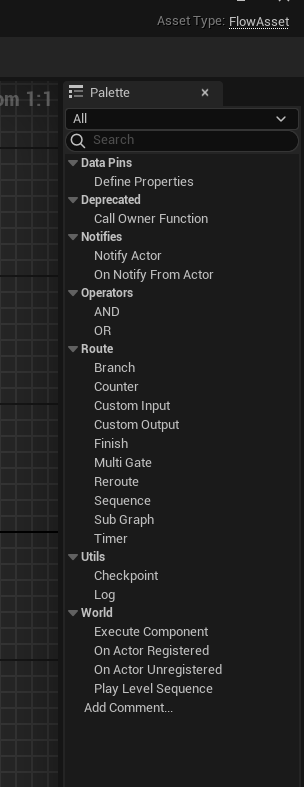
正如前面所说,PaletteTab 在 RegisterTabSpawners 函数中注册
InTabManager->RegisterTabSpawner(PaletteTab, FOnSpawnTab::CreateSP(this, &FFlowAssetEditor::SpawnTab_Palette))
			.SetDisplayName(LOCTEXT("PaletteTab", "Palette"))
			.SetGroup(WorkspaceMenuCategoryRef)
			.SetIcon(FSlateIcon(FAppStyle::GetAppStyleSetName(), "Kismet.Tabs.Palette"));
这里注册了 PaletteTab 对应的创建函数是 FFlowAssetEditor::SpawnTab_Palette,不过从函数内容来看,其实就是 SDockTab 包了个 Palette 对象
TSharedRef<SDockTab> FFlowAssetEditor::SpawnTab_Palette(const FSpawnTabArgs& Args) const
{
	check(Args.GetTabId() == PaletteTab);

	return SNew(SDockTab)
		.Label(LOCTEXT("FlowPaletteTitle", "Palette"))
		[
			Palette.ToSharedRef()
		];
}
Palette 对象也很简单
Palette = SNew(SFlowPalette, SharedThis(this));
SFlowPalette 的内容很简单
- 使用
SGraphActionMenu作为列表容器,显示 Item,提供 Item 拖拽功能 - 使用
STextComboBox提供文本输入功能,作为列表筛选
this->ChildSlot
[
	SNew(SBorder)
	.Padding(2.0f)
	.BorderImage(FAppStyle::GetBrush("ToolPanel.GroupBorder"))
	[
		SNew(SVerticalBox)
		+ SVerticalBox::Slot() // Filter UI
			.AutoHeight()
			[
				SNew(SHorizontalBox)
				+ SHorizontalBox::Slot()
					.VAlign(VAlign_Center)
					[
						SAssignNew(CategoryComboBox, STextComboBox)
							.OptionsSource(&CategoryNames)
							.OnSelectionChanged(this, &SFlowPalette::CategorySelectionChanged)
							.InitiallySelectedItem(CategoryNames[0])
					]
			]
		+ SVerticalBox::Slot() // Content list
			.HAlign(HAlign_Fill)
			.VAlign(VAlign_Fill)
			[
				SAssignNew(GraphActionMenu, SGraphActionMenu)
					.OnActionDragged(this, &SFlowPalette::OnActionDragged)
					.OnActionSelected(this, &SFlowPalette::OnActionSelected)
					.OnCreateWidgetForAction(this, &SFlowPalette::OnCreateWidgetForAction)
					.OnCollectAllActions(this, &SFlowPalette::CollectAllActions)
					.OnCreateCustomRowExpander_Static(&LocalUtils::CreateCustomExpanderStatic, false)
					.AutoExpandActionMenu(true)
			]
	]
];
| SGraphActionMenu | 回调接口 |
|---|---|
| OnActionDragged | 设置动作拖拽事件的处理函数 |
| OnActionSelected | 选中处理函数 |
| OnCreateWidgetForAction | 自定义每个 Item 的显示控件 |
| OnCollectAllActions | 设置菜单数据源收集函数 |
通过 SFlowPalette::CollectAllActions 收集到了数据源,核心内容在 UFlowGraphSchema::GetFlowNodeActions 中,收集到的数据源是基于 UFlowNodeBase 的类,包括 C++ 和 蓝图的
TArray<UClass*> UFlowGraphSchema::NativeFlowNodes;				// 基于 UFlowNodeBase 的 C++ 类
TMap<FName, FAssetData> UFlowGraphSchema::BlueprintFlowNodes;	// 基于 UFlowNodeBase 的 蓝图类
好奇 NativeFlowNodes 和 BlueprintFlowNodes 是怎么得到的,核心就是 GetDerivedClasses
GetDerivedClasses(FlowNodeBaseClass, FlowNodesOrAddOns);
通过 GetDerivedClasses 得到基于 FlowNodeBaseClass 的 TArray<UClass*>,核心代码大概如下
FUObjectHashTables& ThreadHash = FUObjectHashTables::Get();
TSet<UClass*>* DerivedClasses = ThreadHash.ClassToChildListMap.Find(ClassToLookFor);
Results.Append( DerivedClasses->Array() );
Graph
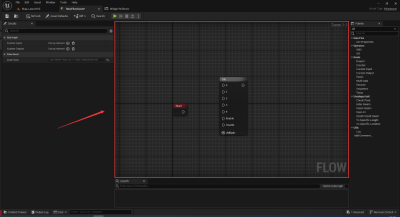
TSharedRef<SDockTab> FFlowAssetEditor::SpawnTab_Graph(const FSpawnTabArgs& Args) const
{
	check(Args.GetTabId() == GraphTab);

	TSharedRef<SDockTab> SpawnedTab = SNew(SDockTab)
		.Label(LOCTEXT("FlowGraphTitle", "Graph"));

	if (GraphEditor.IsValid())
	{
		SpawnedTab->SetContent(GraphEditor.ToSharedRef());
	}

	return SpawnedTab;
}
通过上述代码创建 Graph 对应的 Tab,具体的控件对象是 GraphEditor
void FFlowAssetEditor::CreateGraphWidget()
{
	SAssignNew(GraphEditor, SFlowGraphEditor, SharedThis(this))
		.DetailsView(DetailsView);
}
功能实现是
SFlowGraphEditor完成的
UEdGraph
在 InitFlowAssetEditor 对 UEdGraph 进行过一些操作
UFlowGraph* FlowGraph = Cast<UFlowGraph>(FlowAsset->GetGraph());
if (IsValid(FlowGraph))
{
    // Call the OnLoaded event for the flowgraph that is being edited
    FlowGraph->OnLoaded();
}
在创建 SFlowGraphEditor 也就是 SGraphEditor 时,顺便将 FlowGraph 也传递进去了
// 创建 SFlowGraphEditor 对象
SAssignNew(GraphEditor, SFlowGraphEditor, SharedThis(this))
		.DetailsView(DetailsView);

// 触发 SFlowGraphEditor 构造函数
void SFlowGraphEditor::Construct(const FArguments& InArgs, const TSharedPtr<FFlowAssetEditor> InAssetEditor)
{
	FlowAssetEditor = InAssetEditor;                        // 得到 FFlowAssetEditor
	FlowAsset = FlowAssetEditor.Pin()->GetFlowAsset();      // 得到 UFlowAsset
	SGraphEditor::FArguments Arguments;
	Arguments._GraphToEdit = FlowAsset->GetGraph();         // 得到 UEdGraph

    // 其他参数设置
	SGraphEditor::Construct(Arguments);
}
从上面代码可以发现, FlowAsset 中存储了 UEdGraph 对象
#if WITH_EDITORONLY_DATA

private:
	UPROPERTY()
	TObjectPtr<UEdGraph> FlowGraph;
UEdGraph 存储着所有的节点
UCLASS(MinimalAPI)
class UEdGraph : public UObject
{
// ... 其他属性函数定义
	UPROPERTY()
	TSubclassOf<class UEdGraphSchema>  Schema;

	UPROPERTY()
	TArray<TObjectPtr<class UEdGraphNode>> Nodes;
}
FEdGraphSchemaAction
下图中每一项都是一个 FEdGraphSchemaAction
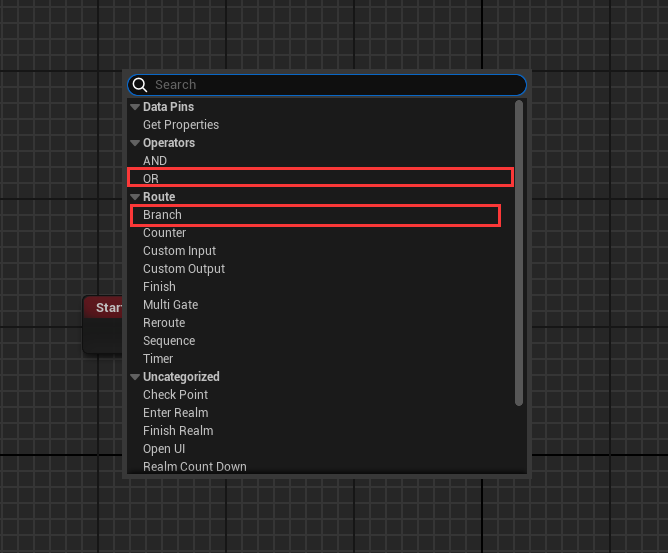
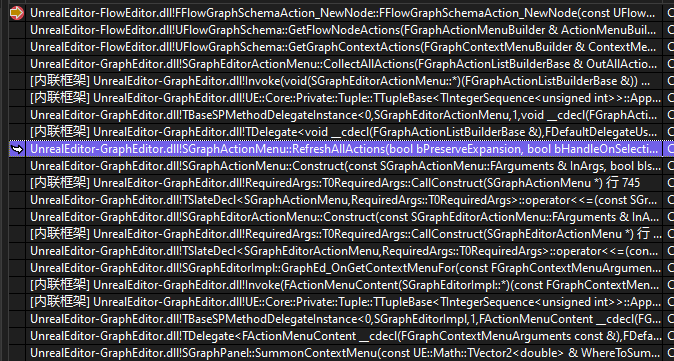
函数调用堆栈如上
通过 UFlowGraphSchema 来创建 FEdGraphSchemaAction
在 UFlowGraphSchema 得到使用 C++ 或者 蓝图 创建的基类是 UFlowNodeBase 的 UClass 的 CDO,并将其全部存储到 FilteredNodes 容器中
TArray<UFlowNodeBase*> FilteredNodes = GetFilteredPlaceableNodes(EditedFlowAsset, NativeFlowNodes, BlueprintFlowNodes);

for (const UFlowNodeBase* FlowNodeBase : FilteredNodes)
{
	if ((CategoryName.IsEmpty() || CategoryName.Equals(FlowNodeBase->GetNodeCategory())) && !UFlowGraphSettings::Get()->NodesHiddenFromPalette.Contains(FlowNodeBase->GetClass()))
	{
		const UFlowNode* FlowNode = CastChecked<UFlowNode>(FlowNodeBase);
		TSharedPtr<FFlowGraphSchemaAction_NewNode> NewNodeAction(new FFlowGraphSchemaAction_NewNode(FlowNode));
		ActionMenuBuilder.AddAction(NewNodeAction);
	}
}
FFlowGraphSchemaAction_NewNode 构造函数如下,是用于创建 Node 节点的,显示某个基类是 UFlowNodeBase 的对象
FFlowGraphSchemaAction_NewNode(const UFlowNode* Node)
	: FEdGraphSchemaAction(FText::FromString(Node->GetNodeCategory()), Node->GetNodeTitle(), Node->GetNodeToolTip(), 0, FText::FromString(Node->GetClass()->GetMetaData("Keywords")))
	, NodeClass(Node->GetClass())
{}
它的内容非常简单,通常只有一个 PerformAction 函数,在该 Action 被触发时调用
virtual UEdGraphNode* PerformAction(class UEdGraph* ParentGraph, UEdGraphPin* FromPin, const FVector2D Location, bool bSelectNewNode = true) override;
比如,在蓝图中,左键选中节点。正如前面所说,右键显示的列表,每个列表都是一个 FEdGraphSchemaAction,当你选中列表中一个 项 的时候,就会触发 PerformAction
以 FFlowGraphSchemaAction_NewNode 为例,它的 PerformAction 就是用于创建节点,由于节点对应的 UClass 已经通过构造函数传递进去了,所以知道如何创建
UEdGraphNode* FFlowGraphSchemaAction_NewNode::PerformAction(class UEdGraph* ParentGraph, UEdGraphPin* FromPin, const FVector2D Location, bool bSelectNewNode /* = true*/)
{
	// prevent adding new nodes while playing
	if (GEditor->PlayWorld != nullptr)
	{
		return nullptr;
	}

	if (NodeClass)
	{
		return CreateNode(ParentGraph, FromPin, NodeClass, Location, bSelectNewNode);
	}

	return nullptr;
}
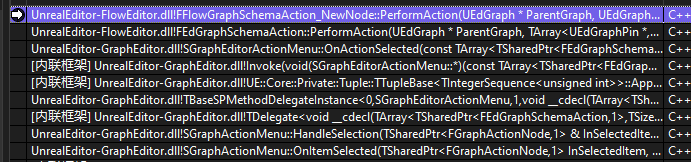
函数调用堆栈如下
通过 PerformAction,可以得到 节点 应该创建在哪的编辑器中、与哪个节点相连、坐标在哪
浅浅看一下 AddNode 做了什么
- 创建
UFlowGraphNode,它的基类是UEdGraphNode,用于在编辑器显示 Node 节点 - 创建
UFlowNode,它是自定义的,用于存储真正的运行时数据 - 将
UFlowGraphNode和UFlowNode关联起来
UFlowGraphNode* NewGraphNode = NewObject<UFlowGraphNode>(ParentGraph, GraphNodeClass, NAME_None, RF_Transactional);
NewGraphNode->CreateNewGuid();
ParentGraph->AddNode(NewGraphNode, false, bSelectNewNode);

UFlowNode* FlowNode = FlowAsset->CreateNode(NodeClass, NewGraphNode);
NewGraphNode->SetNodeTemplate(FlowNode);

// 后续其他设置,比如 节点坐标 等属性